Table of contents
- Editing basics: timeline, trim and split
- Keyframe animation
- Speed, slow motion and velocity edits
- Auto captions, text and text-to-speech
- Remove background and chroma key
- AI tools in CapCut
- Effects, filters and transitions
- Music, sound effects and audio tools
- Overlay, masks and blend modes
- Templates
- Export quality and settings
- Which CapCut features are free?
CapCut APK includes a multi-track timeline, keyframe animation, speed curves, auto captions, background remover and chroma key, AI tools, thousands of templates, filters and effects, a royalty-free music library and export up to 4K 60 fps. Most of these are free; premium assets and heavy AI use need CapCut Pro.
Editing basics: timeline, trim and split
Everything in CapCut happens on the timeline. Your main video track sits in the middle, and audio, text, stickers and overlays appear on extra tracks above and below.
- Trim — drag the white edges of a clip to cut the start or end.
- Split — move the playhead and tap Split to cut a clip in two.
- Reverse, freeze, mirror and rotate — under Edit after selecting a clip.
- Canvas — change the aspect ratio (9:16, 1:1, 16:9 and more) and add a blurred or colored background.
- Undo/redo and auto-saved drafts mean you never lose work.
Keyframe animation
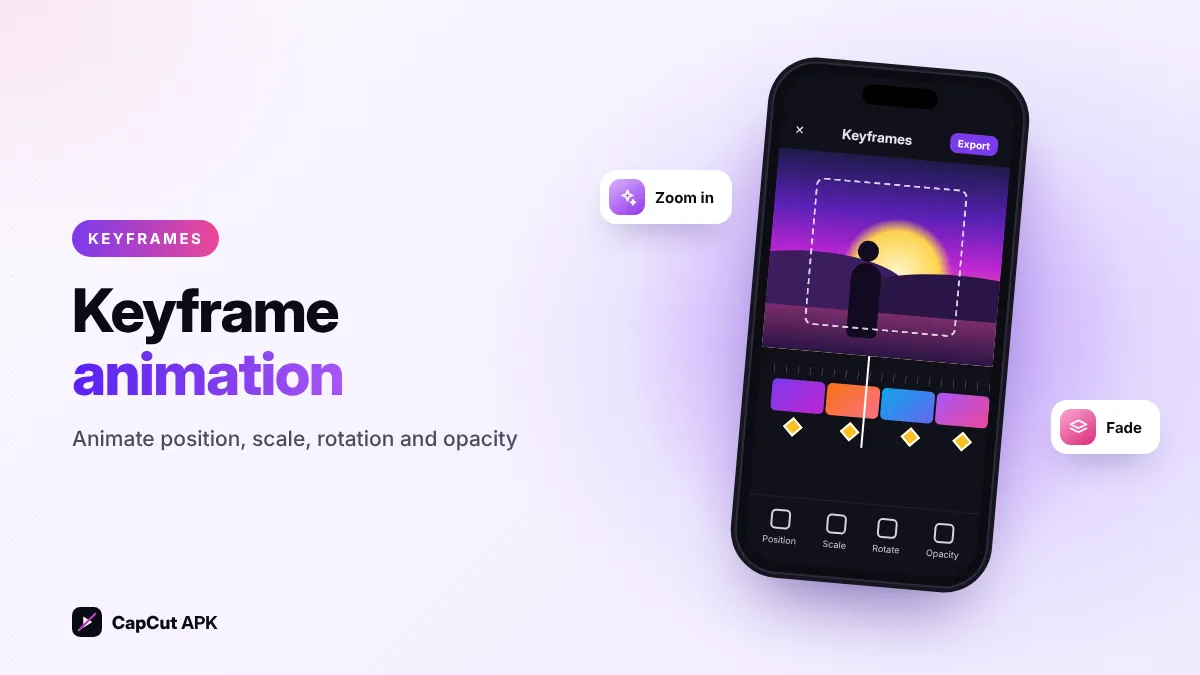
Keyframes let you change a property over time. Add a keyframe (the diamond icon), move the playhead, change the size or position, and CapCut animates between the two points. Use it for:
- Smooth zoom-in and zoom-out effects on photos and clips.
- Moving text or stickers across the screen.
- Fading a layer in and out with opacity.
- Animating volume so music lowers when someone speaks.
Learn more in our CapCut keyframes tutorial.
Speed, slow motion and velocity edits
Under Speed you get two modes. Normal sets a constant speed from 0.1x to 100x. Curve offers presets like Montage, Hero, Bullet, Jump cut, Flash in and Flash out — the base of popular "velocity" edits. Turn on Smooth slow-mo to generate in-between frames for cleaner slow motion. Step-by-step: how to make a velocity edit in CapCut.
Auto captions, text and text-to-speech
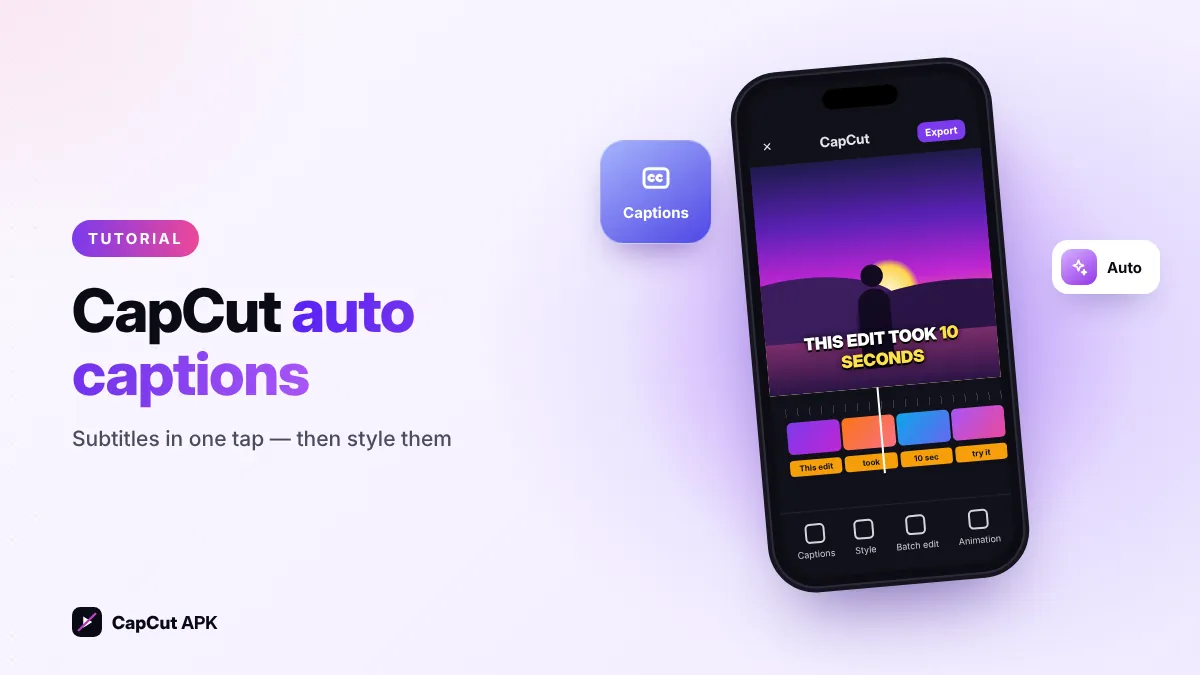
- Auto captions listen to your video and create subtitles automatically. Edit any word, then style all captions at once.
- Text templates give animated titles and lower thirds in one tap.
- Text-to-speech turns typed text into a voice-over with different voices.
- Auto lyrics detect song lyrics for music videos.
Tutorial: how to add auto captions in CapCut.
Remove background and chroma key

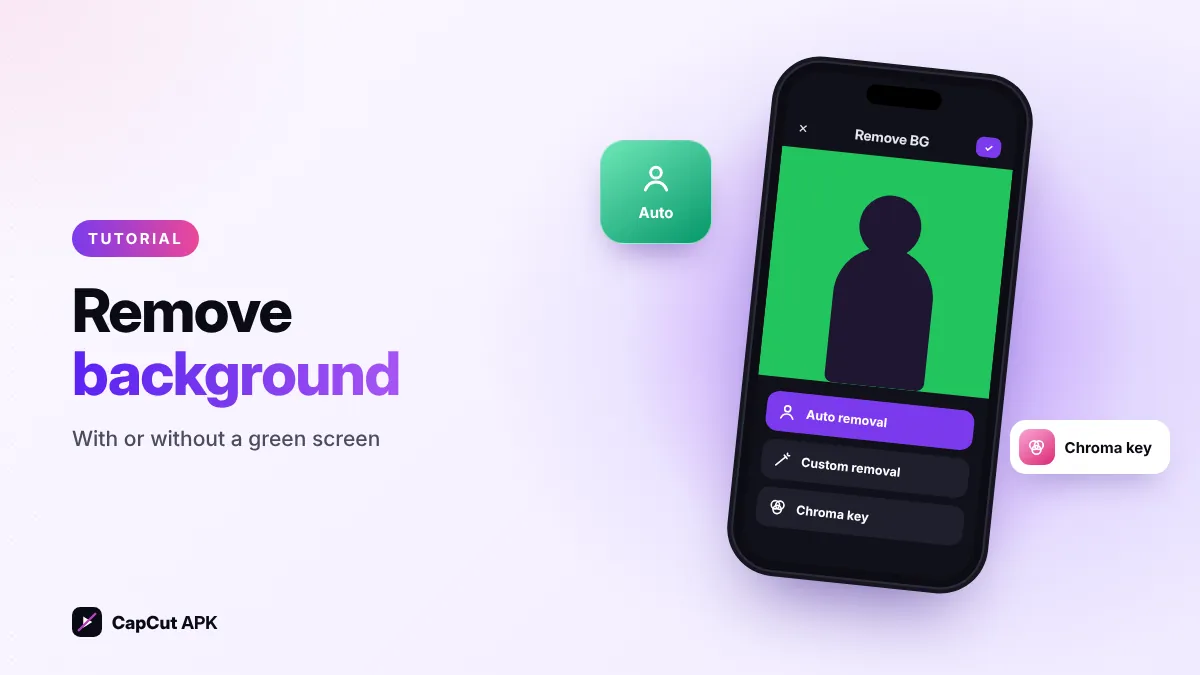
Remove background detects a person and cuts them out without a green screen — perfect for placing yourself over a new background. If you filmed with a real green or blue screen, use Chroma key: pick the color, then adjust Intensity and Shadow for clean edges. Full guide: how to remove background in CapCut.
AI tools in CapCut
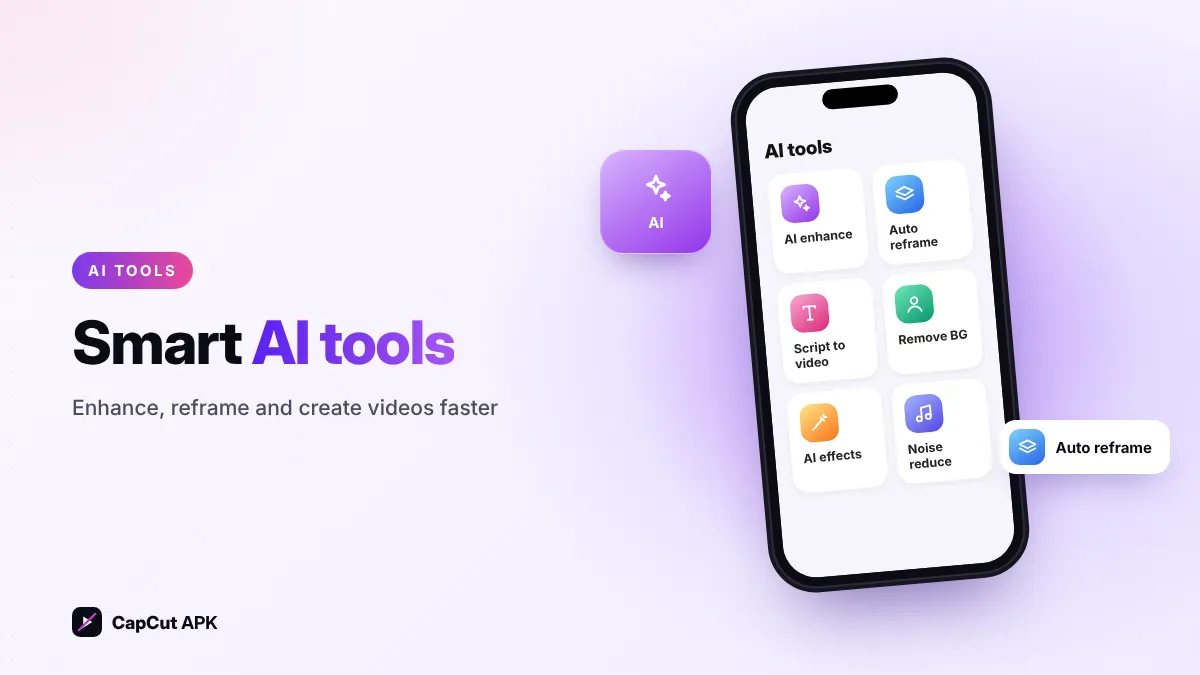
CapCut adds new AI features regularly. Popular ones include:
- AI enhance / video upscaler — sharpen and improve low-quality footage.
- Auto reframe — turn a 16:9 video into 9:16 while keeping the subject centered.
- Script to video and AI writer — generate scripts and draft videos from text.
- Smart cut-out, retouch and body effects — face and body tools for portraits.
- Noise reduction and vocal isolation — clean up audio.
Some AI tools are free with limits and others use Pro credits. See CapCut Pro for details.
Effects, filters and transitions
CapCut's library includes hundreds of video effects (glitch, blur, retro, light leaks, shake), body effects, filters for color grading and transitions between clips. For precise color work use Adjust: brightness, contrast, saturation, HSL, curves and LUT-style presets.
Music, sound effects and audio tools
- Sounds library with music and sound effects you can use in your edits.
- Extract audio from any video in your gallery.
- Beat sync marks beats so cuts land on the music.
- Voice effects and voice changer, fade in/out and volume keyframes.
- Record voice-over directly on the timeline.
Overlay, masks and blend modes
Add a second video or image as an overlay (picture-in-picture). Then use masks (linear, mirror, circle, rectangle, heart, star) and blend modes (screen, multiply, overlay and more) to create split screens, clone effects and double-exposure looks.
Templates
The Templates tab is the fastest way to make a trending video: choose a template, replace the clips with your own and export. Learn more in our CapCut templates guide.
Export quality and settings
| Setting | Options | Best for |
|---|---|---|
| Resolution | 480p, 720p, 1080p, 2K, 4K | 1080p for social media; 4K for YouTube |
| Frame rate | 24, 25, 30, 50, 60 fps | 30 fps normally; 60 fps for gaming and sports |
| Code rate (bitrate) | Lower, Recommended, Higher | "Higher" for the best quality uploads |
| Smart HDR | On / Off | Supported phones only |
Exact options depend on your phone's hardware and your CapCut plan.
Which CapCut features are free?
| Feature | Free | Pro |
|---|---|---|
| Timeline, trim, split, speed | ✓ | ✓ |
| Keyframes, masks, blend modes | ✓ | ✓ |
| Auto captions | ✓ | ✓ |
| Remove background, chroma key | ✓ | ✓ |
| Premium effects, filters, templates | ✕ | ✓ |
| Heavy AI use, large cloud storage | Limited | ✓ |
Was this helpful? Rate CapCut APK
Be the first to rate