Table of contents
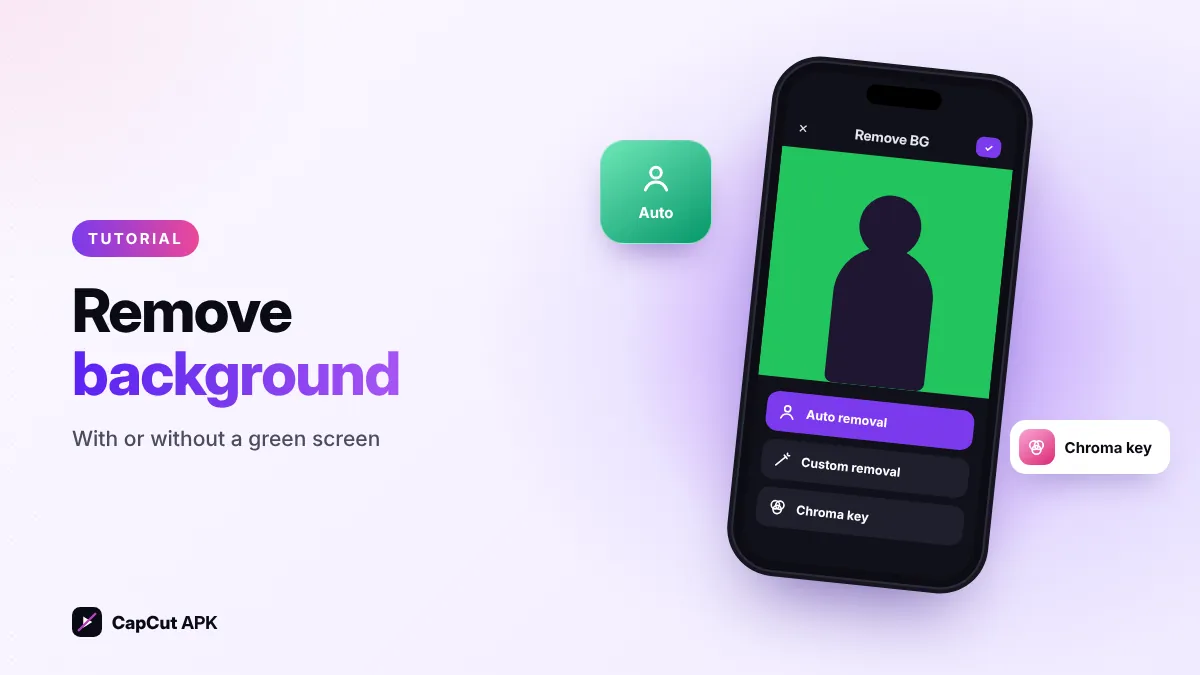
To remove a background in CapCut: add your new background as the main clip, add the person video as an Overlay, select it and tap Remove BG → Auto removal. Use Custom removal to brush in missed areas, or Chroma key if you filmed in front of a green screen.
Background removal lets you place yourself anywhere — on a beach, in a game scene or over a product shot — without a studio. It's free in the CapCut APK.
3 ways to remove a background in CapCut
| Method | Needs green screen? | Best for |
|---|---|---|
| Auto removal | No | People, talking heads, dances |
| Custom removal | No | Fixing edges, objects |
| Chroma key | Yes | Cleanest result with a green/blue screen |

How to use Auto removal (no green screen)
- Add the new backgroundTap New project and add the background image or video first.
- Add your video as an overlayTap Overlay → Add overlay and pick the clip with the person.
- Remove the backgroundSelect the overlay → Remove BG → Auto removal. Wait while CapCut processes it.
- Resize and placePinch to resize and drag the person into position.
- Match the lookUse Adjust (brightness, temperature) so the person blends with the new scene.
How to use Chroma key with a green screen
- Add the green-screen clip as an overlaySame as above.
- Open Chroma keySelect the overlay → Remove BG → Chroma key.
- Pick the colorDrag the color picker onto the green area.
- Adjust Intensity and ShadowRaise Intensity until the green disappears; use Shadow to soften edges.

How to fix rough edges
- Film with good, even light and a background that contrasts with your clothes.
- Use Custom removal to brush back hair or hands that were cut off.
- Add a slight Stroke or Shadow on the cut-out to hide jagged edges.
- For green screens, avoid wearing green and keep the screen wrinkle-free.
Next, animate your cut-out with keyframes or add auto captions. All tools are explained in our features guide.