Table of contents
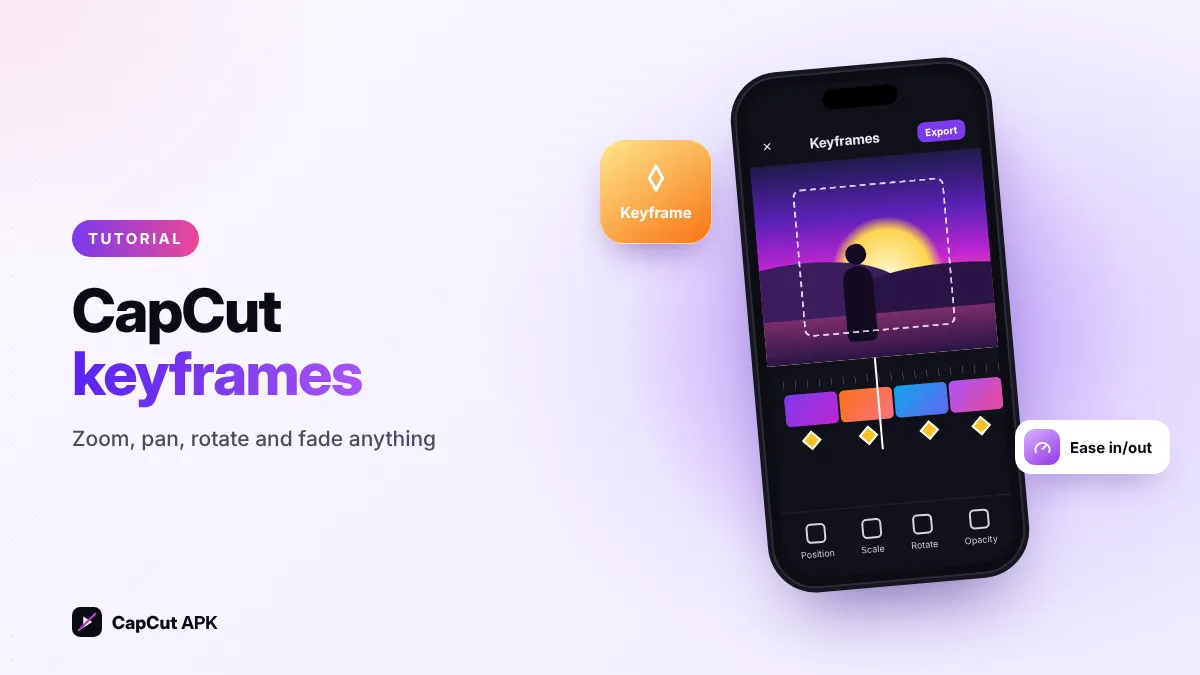
To use keyframes in CapCut: select a clip, move the playhead to the start and tap the diamond (keyframe) icon. Move the playhead forward and change the size, position, rotation or opacity — CapCut adds a second keyframe and animates smoothly between them. Tap Graphs (where available) to add ease-in/ease-out.
Keyframes are the secret behind smooth zoom-ins, Ken Burns photo effects and moving text in popular edits. They are free in the CapCut APK.
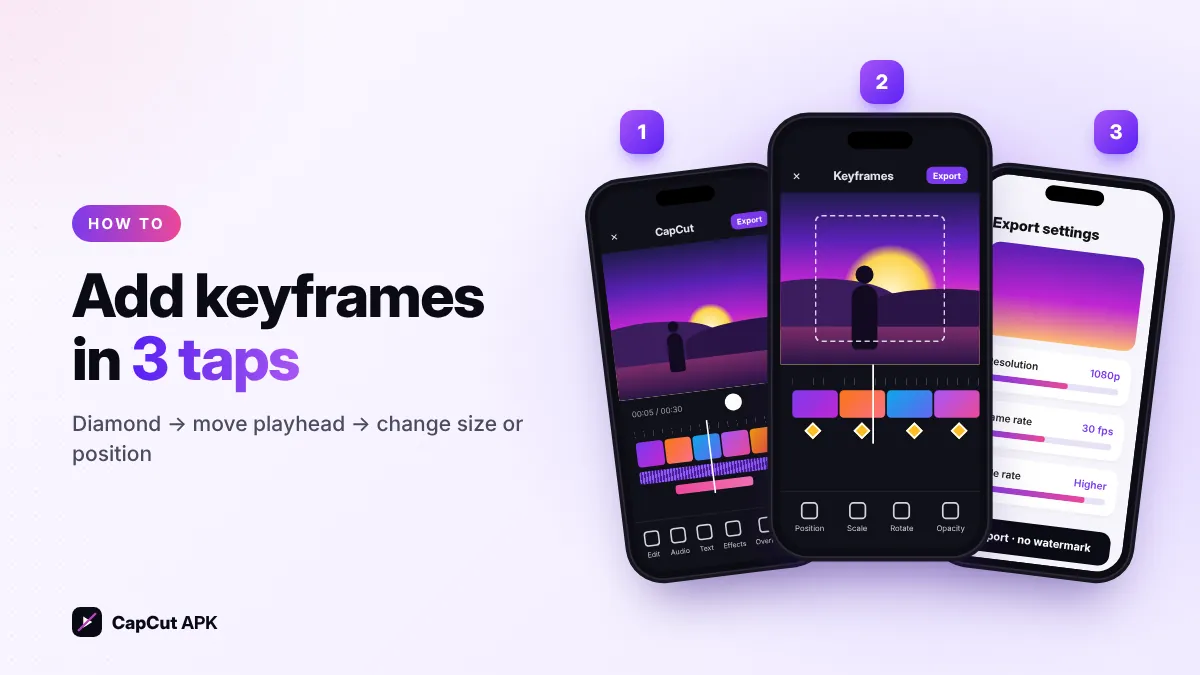
How to add keyframes in CapCut
- Select the clipTap the clip, photo, text or overlay you want to animate.
- Set the first keyframeMove the playhead to where the motion starts and tap the diamond icon above the timeline.
- Move the playheadDrag the timeline to where the motion should end.
- Change the propertyPinch to zoom, drag to move, twist to rotate, or change Opacity. A new keyframe is added automatically.
- Preview and refinePlay it back. Add more keyframes for multi-step motion, or delete one by selecting it and tapping the diamond again.
5 keyframe effects to try
| Effect | Keyframe 1 | Keyframe 2 |
|---|---|---|
| Smooth zoom-in | Scale 100% | Scale 130% |
| Pan across a photo | Image moved left | Image moved right |
| Spin transition | Rotation 0° | Rotation 360° + scale up |
| Fade in | Opacity 0% | Opacity 100% |
| Music duck | Volume 100% | Volume 20% (while someone speaks) |

Tips for smoother keyframes
- Use easing (Graphs) so motion starts and ends softly instead of robotically.
- Keep zooms subtle (110–130%) — big jumps look shaky on phones.
- Combine with a speed curve for beat-synced zooms.
- Animate a cut-out person moving across a new background.
- Prefer ready-made motion? Browse the templates library.