Table of contents
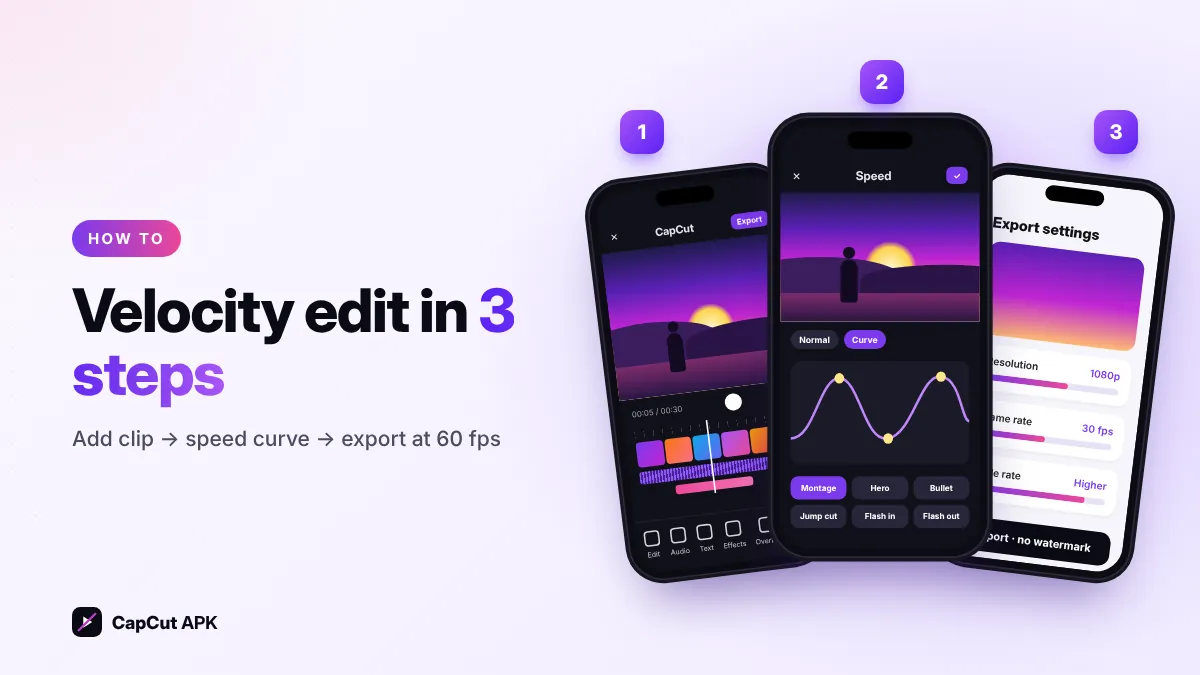
To make a velocity edit in CapCut: add your clip and music, select the clip, tap Speed → Curve, choose a preset like Montage or Hero (or build a custom curve), line up the fast and slow parts with the beat, turn on Smooth slow-mo, add a shake or flash effect and export at 1080p 60 fps.
Velocity edits — clips that speed up and slow down in sync with the music — are one of the most popular styles on TikTok, Reels and Shorts. You can make one for free in the CapCut APK in a few minutes.
What you need
- The latest CapCut APK (speed curves and smooth slow-mo work best on recent versions).
- A clip with clear motion — dance, sports, cars or camera moves.
- A song with a strong beat.
How to make a velocity edit in CapCut
- Start a projectTap New project, add your clip and set the ratio to 9:16.
- Add music and beatsTap Audio → Sounds, add the song, select it and use Beats to mark the beat points automatically.
- Open the speed curveSelect the video clip → Speed → Curve.
- Pick a preset or go customTry Montage, Hero, Bullet, Jump cut, Flash in or Flash out. Tap Edit to drag the points: high points = fast, low points = slow.
- Sync with the beatMove the slow-motion parts so they land exactly on the beat markers.
- Turn on smooth slow-moEnable Smooth slow-mo so slow parts look fluid instead of choppy.
- Add effectsUnder Effects → Video effects add a shake, flash or blur on the beat drops.
- ExportChoose 1080p and 60 fps for smooth motion, then export.
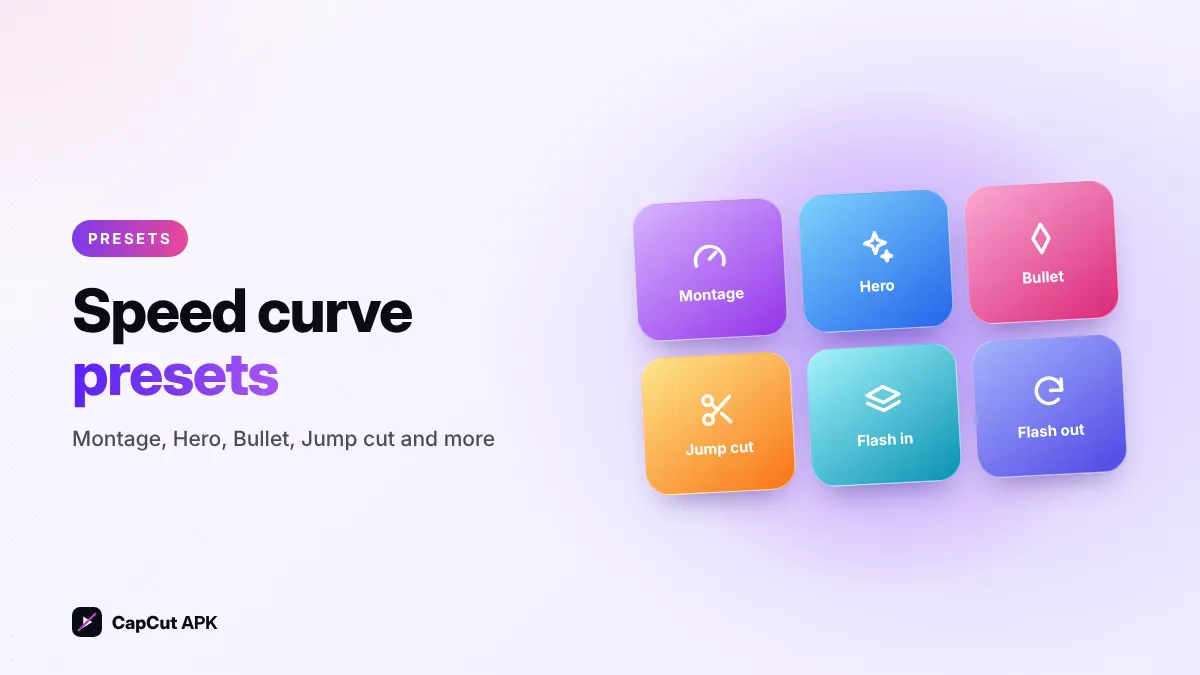
Which speed curve preset to use?
| Preset | Effect | Best for |
|---|---|---|
| Montage | Several fast/slow waves | Classic velocity edits |
| Hero | Fast → slow at the key moment → fast | Sports moments, tricks |
| Bullet | Very slow in the middle | Dramatic action shots |
| Jump cut | Sudden speed jumps | Energetic transitions |
| Flash in / Flash out | Speeds into or out of the clip | Intros and endings |
Tips for a smoother velocity edit
- Film at 60 fps or higher — slow parts look much cleaner.
- Keep slow sections short; long slow-mo on low-fps clips looks jumpy.
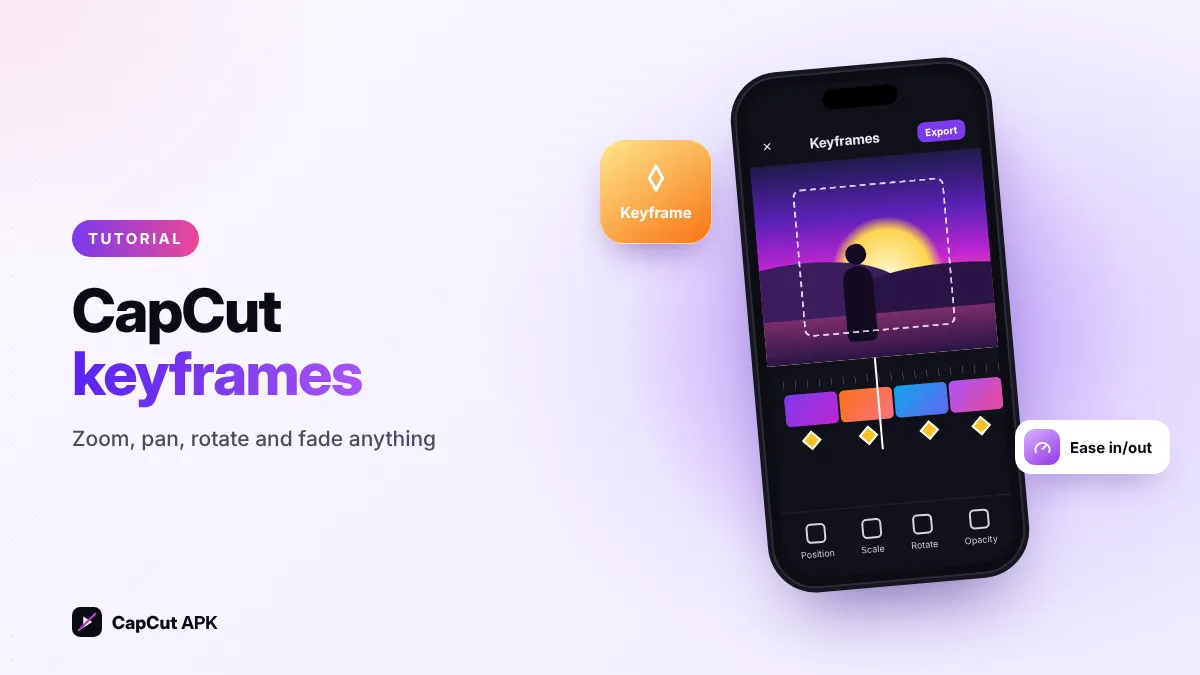
- Add a quick keyframe zoom on the beat drop for extra punch.
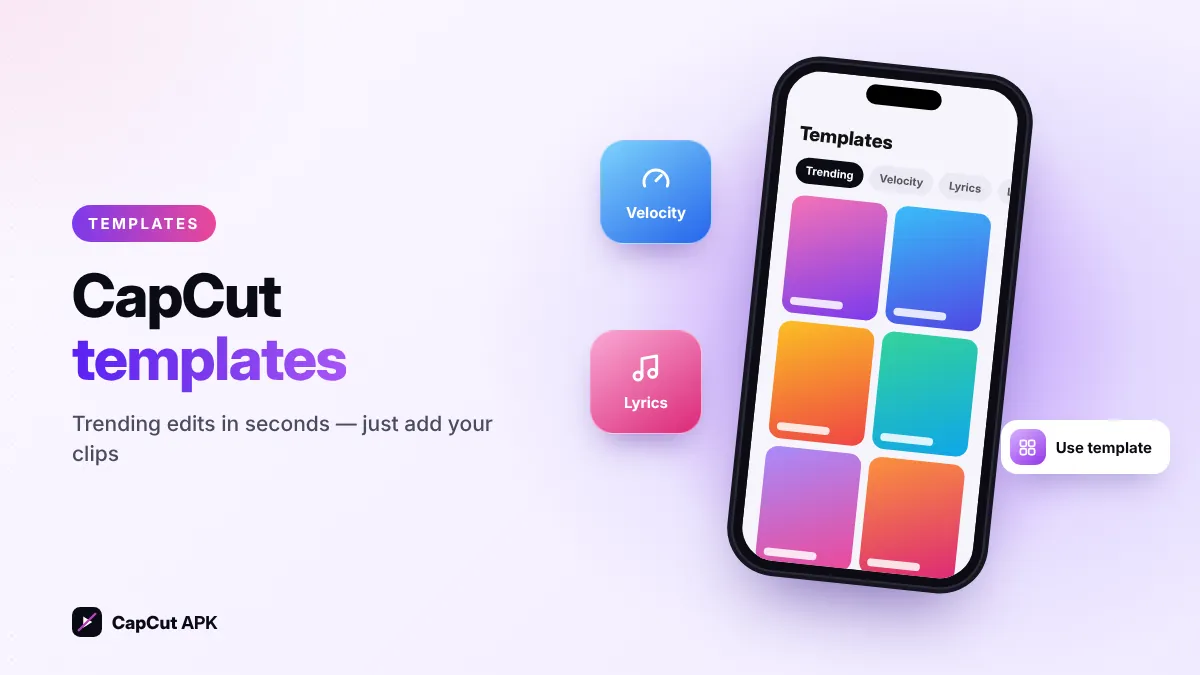
- Short on time? Search "velocity" in the Templates tab.
- Delete the ending clip before exporting for a clean video without watermark.