Table of contents
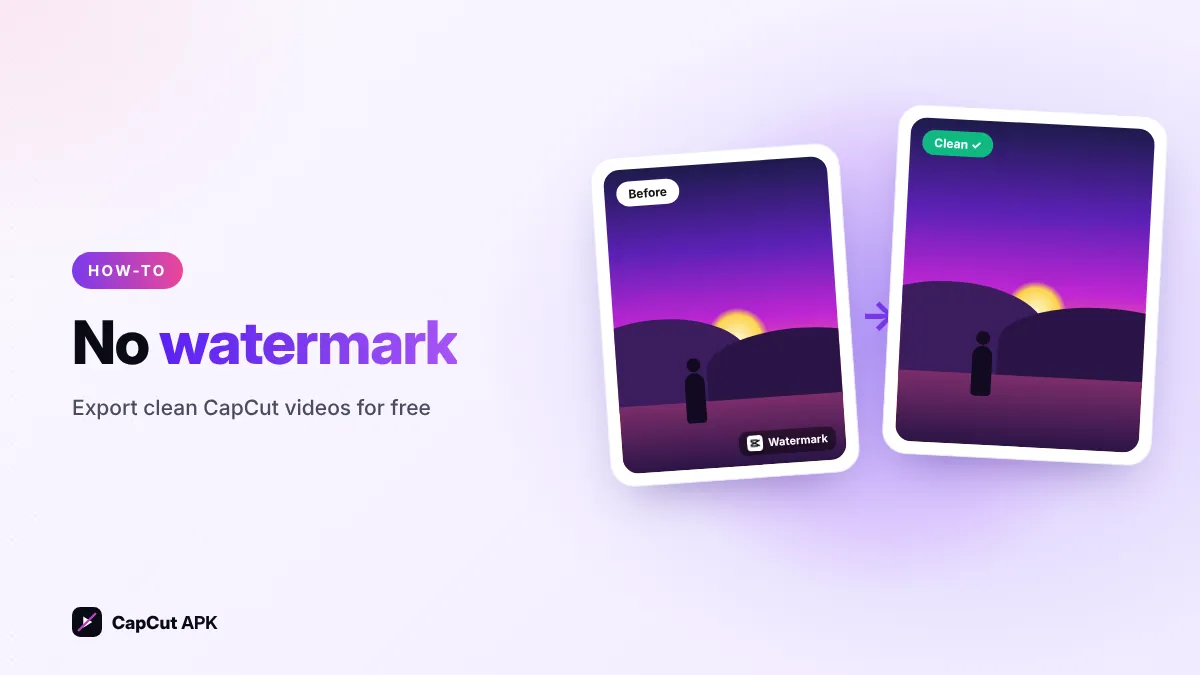
Normal videos edited in the CapCut mobile app have no visible watermark — CapCut only adds a short ending clip with its logo. Delete that clip from the end of your timeline, or turn off Settings → Add default ending so it never appears again. Template exports and desktop/web exports may add a watermark; use the watermark-free export option where offered or CapCut Pro. You do not need a mod APK.
Method 1: Delete the CapCut ending clip
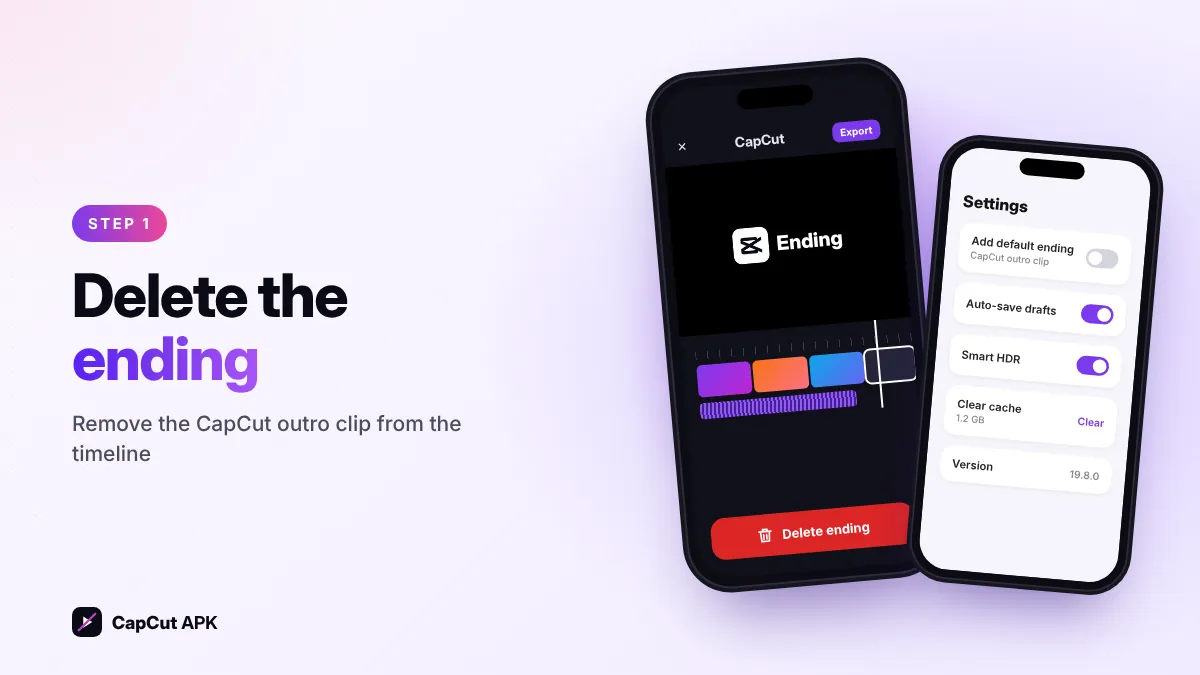
- Open your projectScroll to the very end of the timeline.
- Select the endingTap the last clip with the CapCut logo.
- Tap "Delete"The trash icon at the bottom removes it. Your export is now clean.
Method 2: Turn off the default ending forever
- Open CapCut settingsOn the home screen tap the gear (settings) icon.
- Find "Add default ending"Switch the toggle off.
- ConfirmNew projects will no longer include the ending clip.
This setting only affects new projects. Delete the ending manually in projects you created before turning it off.
Method 3: Export templates without watermark
When you export a template, CapCut may show two choices — a normal export and an export option without watermark (often when you share straight to TikTok). Choose the watermark-free option. If it is not offered, CapCut Pro removes template watermarks.
Watermark on CapCut PC and web
The desktop app and web editor can add a small watermark to free exports, depending on the features used. Options: export the project from the mobile app instead (sync it through CapCut Cloud), avoid Pro-only items, or upgrade to CapCut Pro.
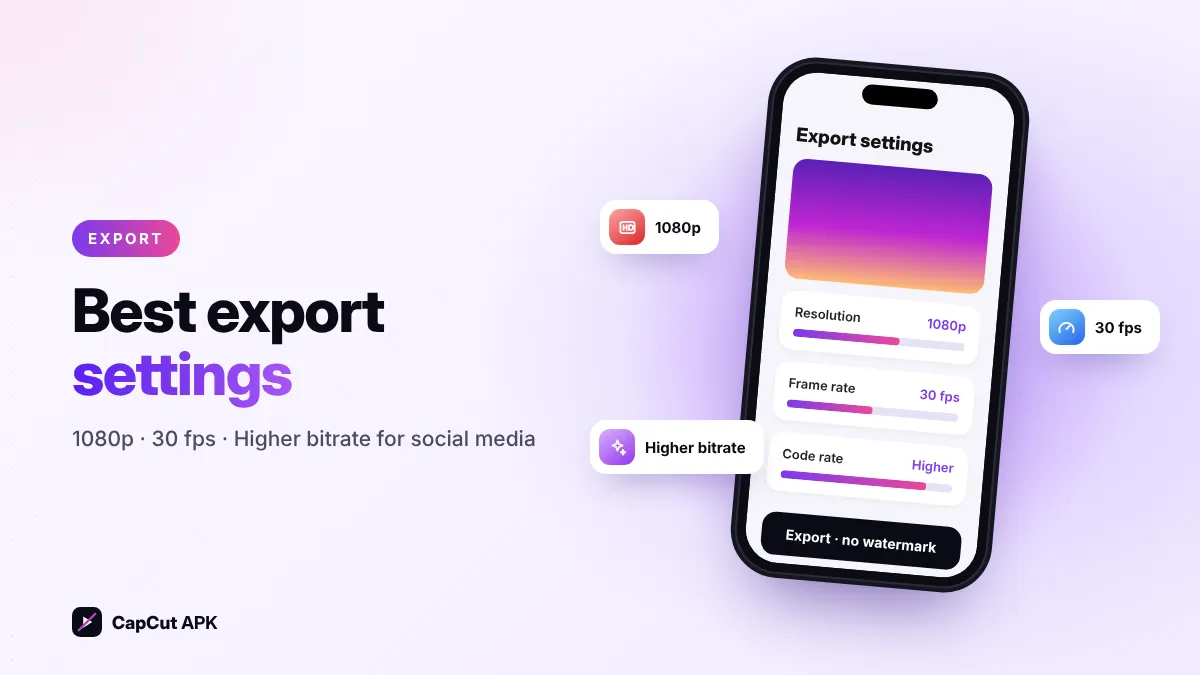
Best CapCut export settings for clean, sharp videos
| Platform | Resolution | Frame rate | Bitrate |
|---|---|---|---|
| Instagram Reels | 1080p (9:16) | 30 fps | Recommended / Higher |
| TikTok | 1080p (9:16) | 30 or 60 fps | Higher |
| YouTube Shorts | 1080p or 4K (9:16) | 30 or 60 fps | Higher |
| YouTube (long) | 4K or 1080p (16:9) | Match your footage | Higher |
| WhatsApp Status | 720p | 30 fps | Recommended |
Why you don't need "no watermark" mod APKs
Files sold as "CapCut Pro APK no watermark" are modified apps with real security risks, and the watermark can be removed for free anyway. See our CapCut Mod APK safety guide.
Only remove CapCut's own ending or watermark. Removing other creators' watermarks from their videos and reposting them breaks copyright and platform rules.
Was this helpful? Rate CapCut APK
Be the first to rate