Table of contents
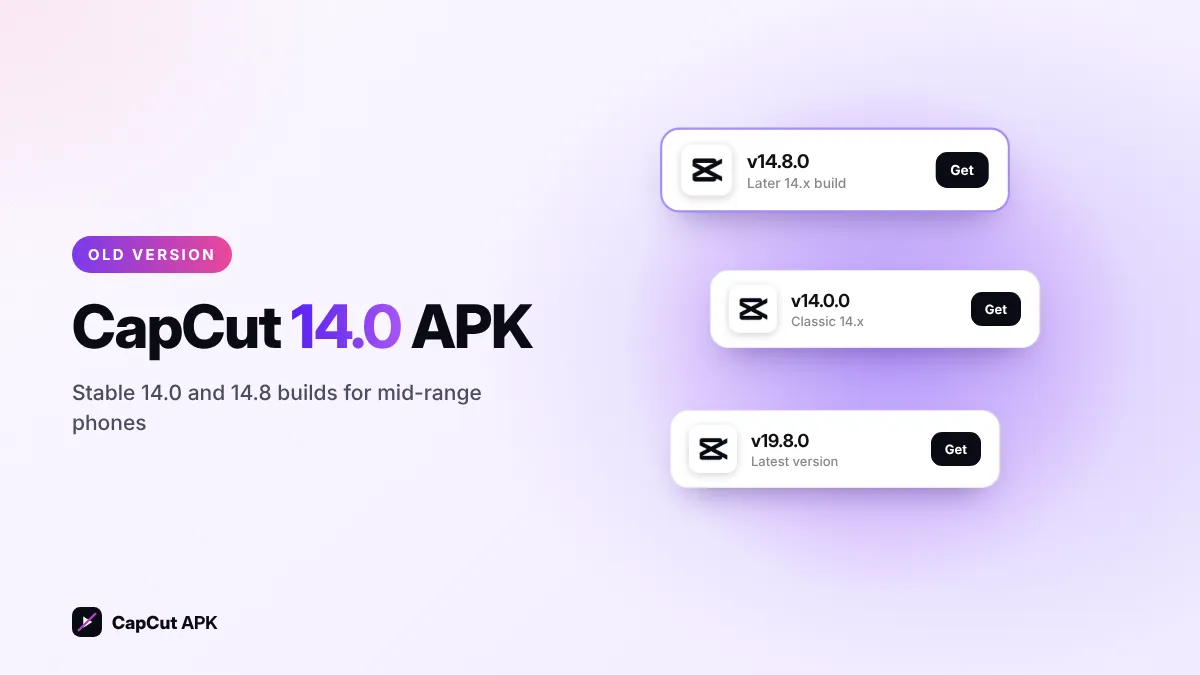
CapCut 14.0 (and the later 14.8) are older official releases that many users still prefer on mid-range phones because they feel lighter than the newest builds. They are not "Pro" versions. To install one, back up your drafts, uninstall your current CapCut, install the 14.x APK and turn off auto-update.
Why do people still look for CapCut 14.0?
Every big CapCut release adds new tools, which also makes the app heavier. Users on older or budget phones often roll back to a 14.x build because:
- the timeline feels smoother on 3–4 GB RAM phones;
- export is faster on older processors;
- they are used to the classic menus and layout.

CapCut 14.x vs the latest version
| CapCut 14.0 / 14.8 | CapCut 19.8.0 (latest) | |
|---|---|---|
| Best for | Mid-range and older phones | Modern phones (4 GB+ RAM) |
| New templates | Partial | Full library |
| Newest AI tools | Missing | Included |
| Security updates | No | Yes |
| Speed on older phones | Faster | Can lag |
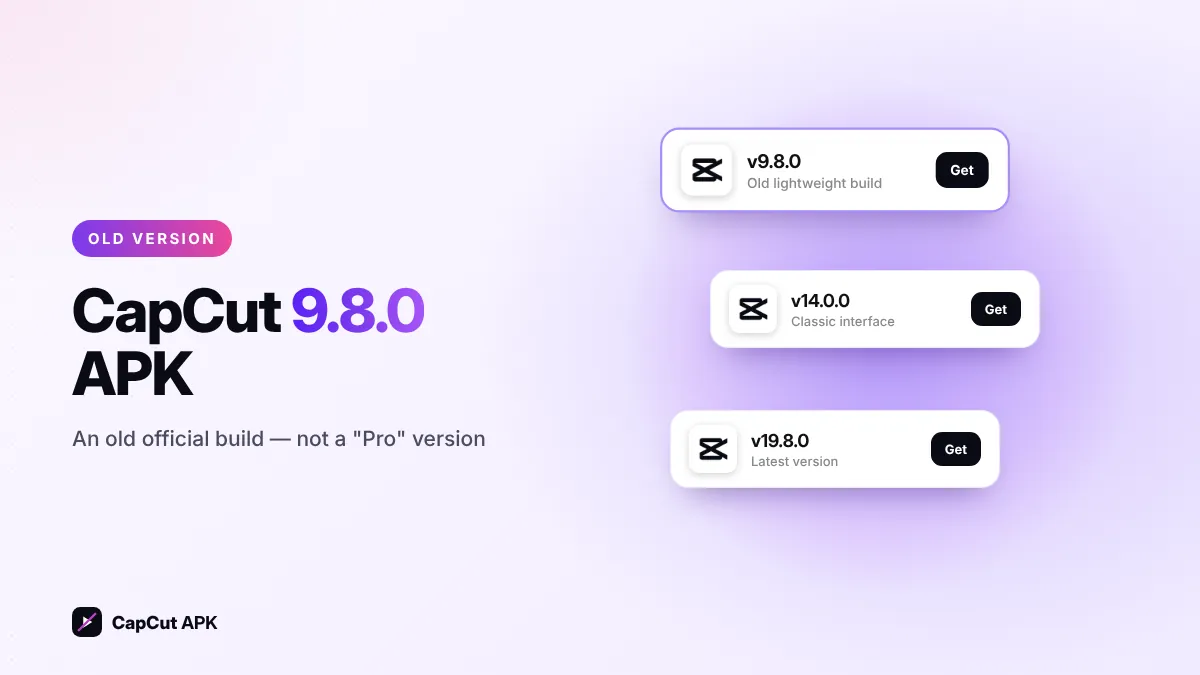
Need something even lighter? See CapCut 9.8.0. Want everything new? Get the latest CapCut APK.
CapCut 14.0 or 14.8 — which one?
Choose 14.8 if you can: it is the later build in the same series, so it includes the fixes released after 14.0. Choose 14.0 only if a specific feature or template you use behaves better on it.
How to downgrade to CapCut 14.x
- Back up projectsUpload drafts to CapCut Cloud or export them — uninstalling deletes local drafts.
- Uninstall CapCutLong-press the icon → App info → Uninstall.
- Download 14.0 or 14.8Use our old versions table.
- InstallAllow unknown apps for your browser if asked, then tap Install.
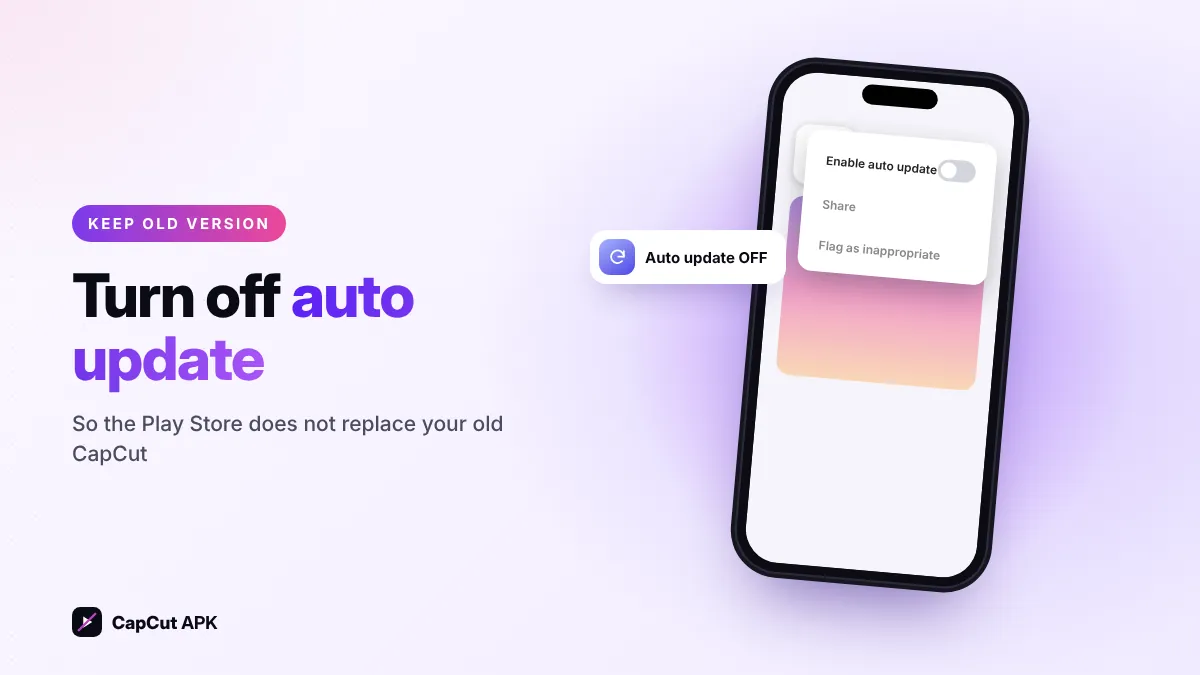
- Stop auto-updatesIn Play Store, open CapCut → three dots → turn off Enable auto update.
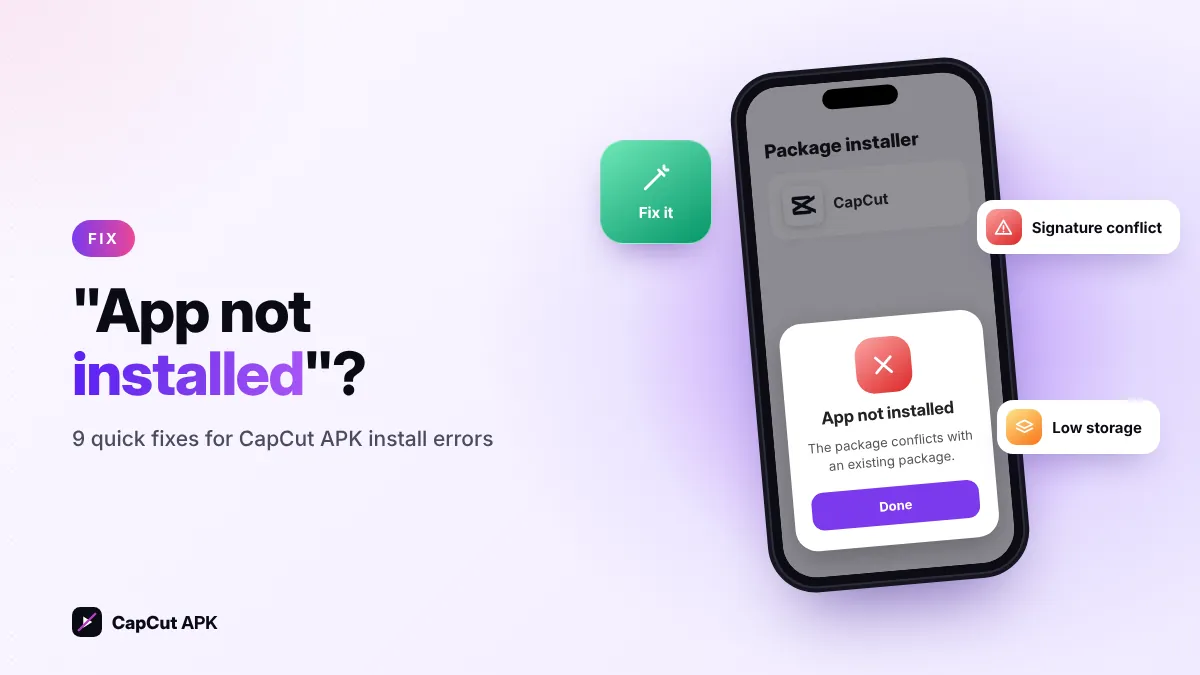
If installation fails with "App not installed", a newer CapCut is probably still installed. Follow our App not installed fix guide.
How to go back to the latest version later
Simply install the latest CapCut APK over 14.x — no uninstall needed when upgrading. Your drafts stay on the phone.